MCP Server
Use all 14 Galya tools directly from Cursor, Claude Desktop, or any MCP-compatible host — no SDK, no boilerplate.
The Galya MCP server exposes every Galya capability as a native tool inside your AI environment. Once configured, you can ask your AI assistant to create users, create content entities, search, rerank, and more — in plain language, without writing a single line of code.
What's MCP?
MCP (Model Context Protocol) is the standard that lets AI assistants like Cursor and Claude Desktop call external tools on your behalf. Think of it as giving your AI a direct line to Galya's API.
Before you start — get your API key
You'll need a Galya workspace secret key. Open the Galya dashboard, go to API keys in the left sidebar, and copy your Secret key (starts with galya_wsk_…). Click Copy key.
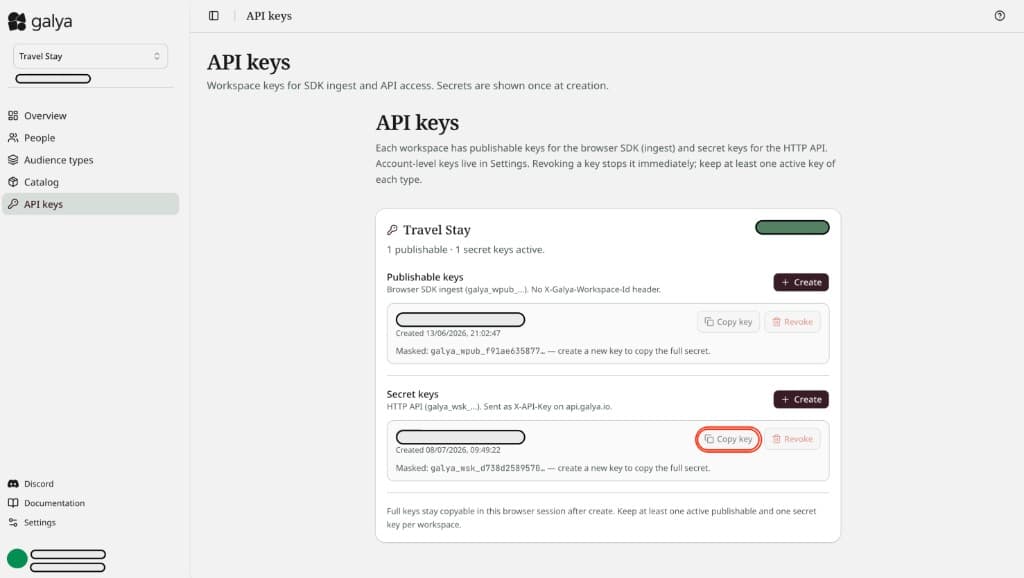
Secret key, not publishable key
Use the Secret key (galya_wsk_…) under "Secret keys", not the publishable key above it. The publishable key is for browser ingest only and won't work here.
Set up in Cursor
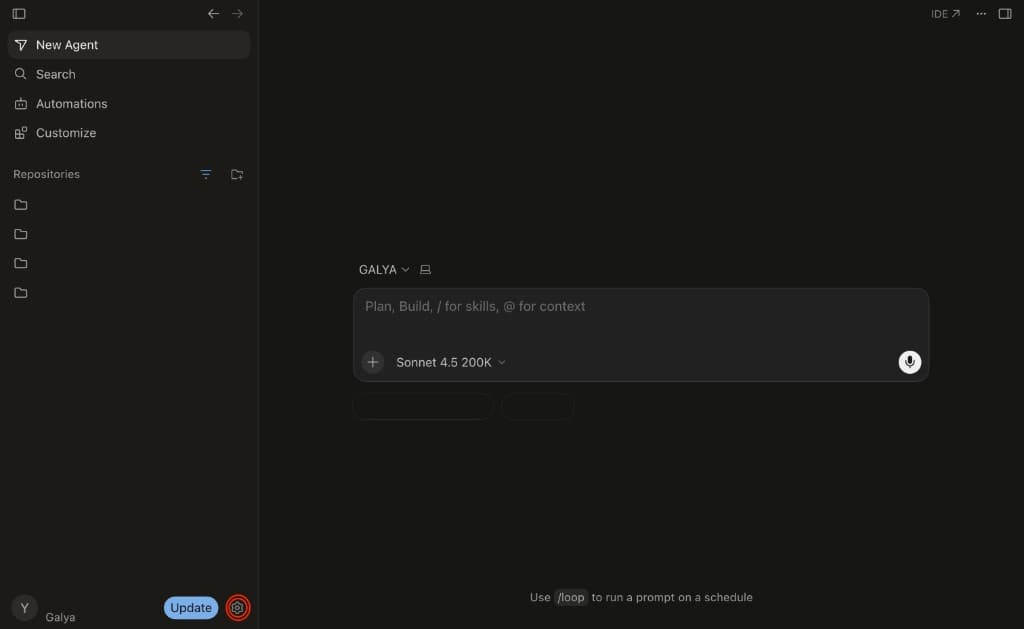
Step 1 — Open Settings
Click the settings icon at the bottom-left of the Cursor window.
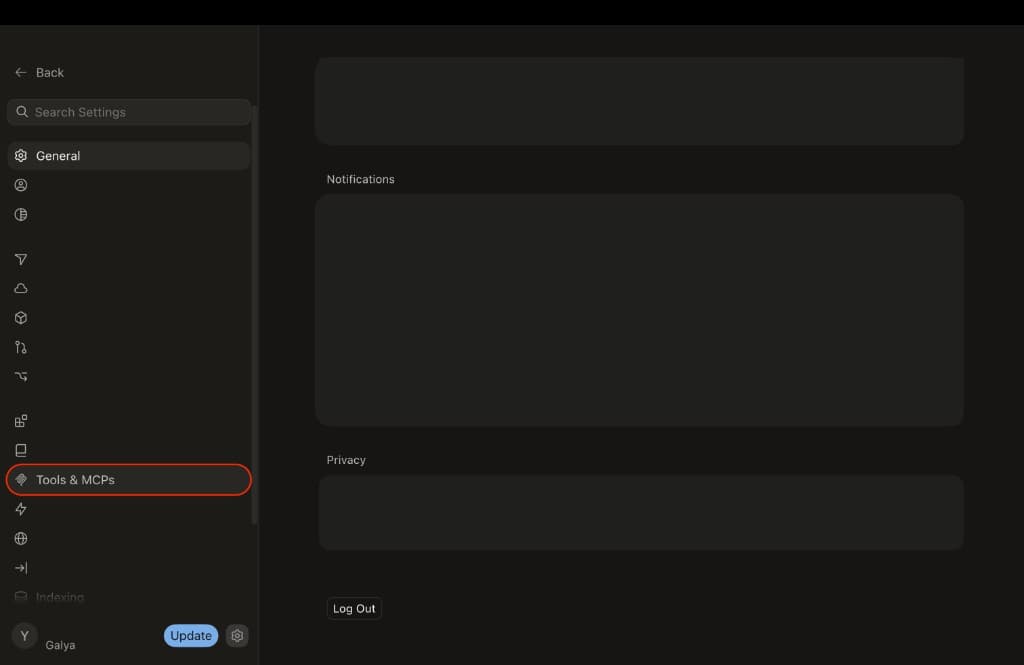
Step 2 — Go to Tools & MCPs
In the settings sidebar, click Tools & MCPs.
Step 3 — Add a new MCP server
Click the + New MCP Server button.
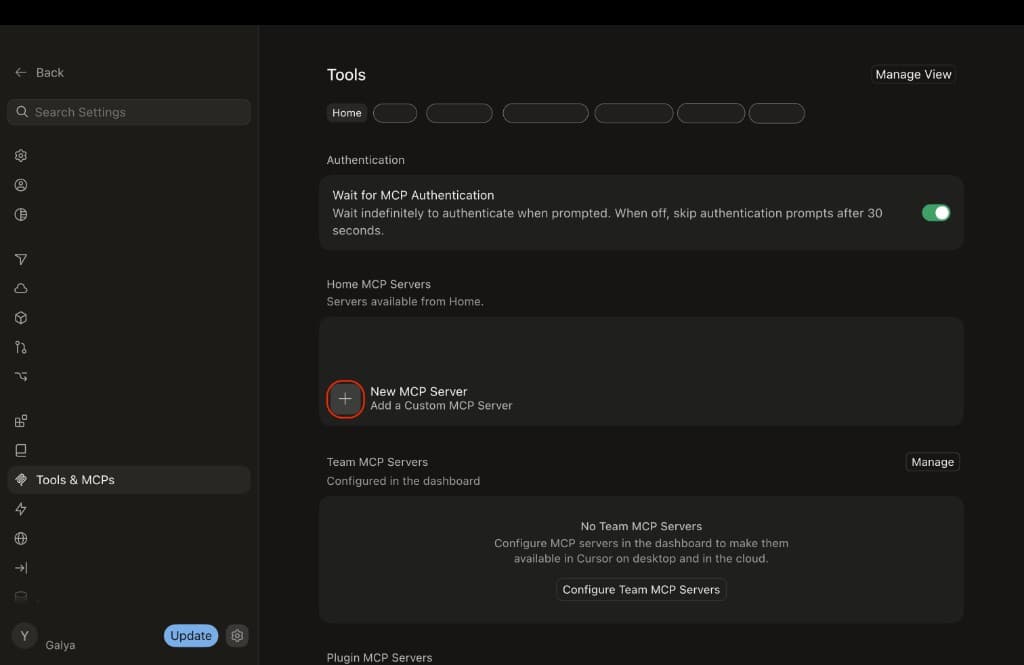
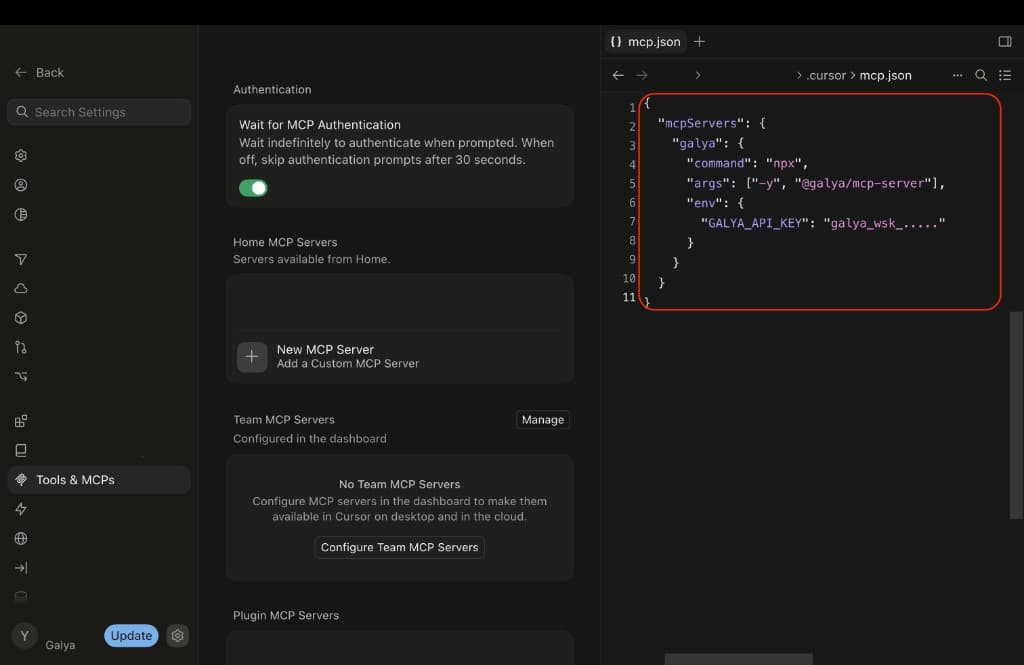
This opens your mcp.json config file in the editor (located at ~/.cursor/mcp.json).
Step 4 — Paste the Galya config
Replace the file contents with the following. Swap galya_wsk_… for your actual secret key from Step 1.
{
  "mcpServers": {
    "galya": {
      "command": "npx",
      "args": ["-y", "@galya/mcp-server"],
      "env": {
        "GALYA_API_KEY": "galya_wsk_....."
      }
    }
  }
}
Save the file (Cmd+S on macOS, Ctrl+S on Windows).
Step 5 — Restart Cursor
Fully quit Cursor (Cmd+Q on macOS) and reopen it. A simple window close won't pick up the new server — you need a full restart.
Step 6 — Verify the connection
Go back to Settings → Tools & MCPs. You should see galya listed under Home MCP Servers with a green dot and 15 tools enabled.
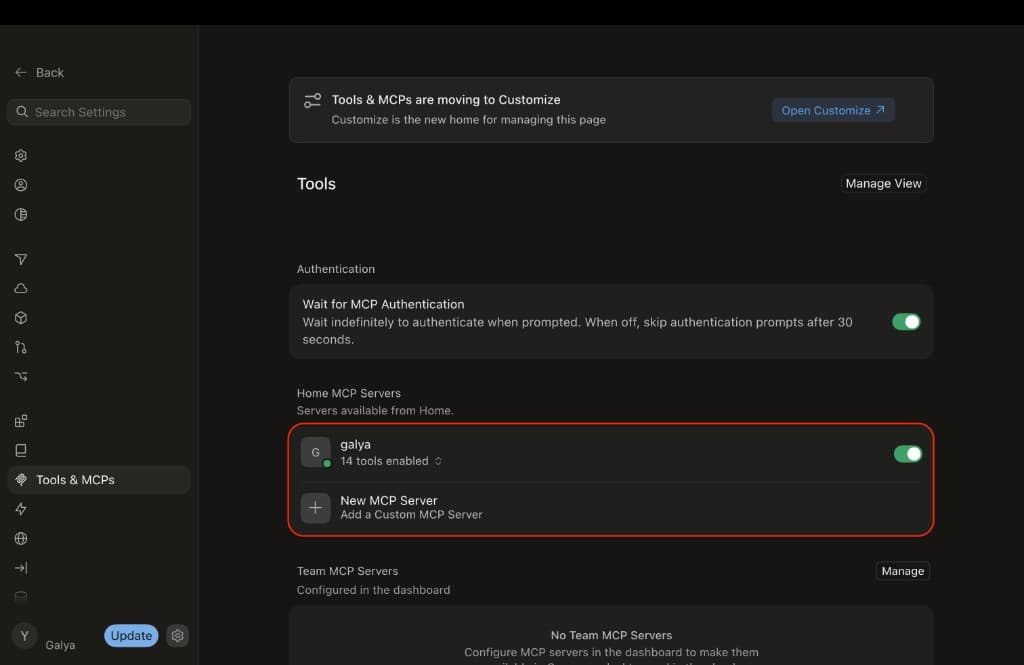
Step 7 — Try it
Open a new Cursor chat and ask in plain English:
"Using Galya, create a user called test-shopper with description coastal minimalist"
Cursor will call the galya_create_entity tool automatically and return the new user's id. No code, no curl — just ask.
Set up in Claude Desktop
Step 1 — Open Settings
Click Claude in your menu bar at the top of the screen (macOS) or system tray (Windows) and select Settings...
Menu bar, not the window
The Claude menu is in your system's top menu bar on macOS — not inside the Claude window itself.
Step 2 — Go to the Developer tab
In the Settings window, click the Developer tab in the left sidebar, then click Edit Config.
This opens claude_desktop_config.json in your editor automatically. If the file doesn't exist yet, Claude Desktop creates it for you.
Step 3 — Add the Galya server
If the file is empty or new, paste the full block below. If it already has content, add the "galya" entry inside the existing "mcpServers" object.
{
  "mcpServers": {
    "galya": {
      "command": "npx",
      "args": ["-y", "@galya/mcp-server"],
      "env": {
        "GALYA_API_KEY": "galya_wsk_....."
      }
    }
  }
}
Replace galya_wsk_… with your actual secret key. Save the file.
Step 4 — Restart Claude Desktop
Fully quit Claude Desktop and reopen it. A simple window close won't load the new config — you need a full restart.
Step 5 — Try it
Open a new conversation and ask Claude anything in plain English. Here are two examples of what you can do straight away:
"What Galya tools do you have available?"
"What requests are you able to make off the bat?"
Available tools
All 16 tools map 1:1 to the Galya REST API. The same rules apply — see Setup & auth and the Walkthrough for context.
| Tool | What it does |
|---|---|
galya_create_entity | Create a user (or other entity type) |
galya_get_entity | Fetch an entity by id |
galya_delete_entity | Delete an entity |
galya_link_entity | Build or rebuild a user's taste profile |
galya_register_entity_type | Register a custom entity type |
galya_get_entity_type | Look up a registered entity type |
galya_create_entity | Create content item, optionally linked to a user |
galya_create_entity_batch | Create items in one call |
galya_search | Personalized search — ranked for a specific user's taste |
galya_rerank | Reorder a candidate list you provide |
galya_score | Score one candidate against a user's taste (POST /v1/score) |
galya_recommend | Recommend from engagement history (domain=uiux by default) |
galya_ask | Natural-language answer written for a user's taste |
galya_explain | Prose summary of why a user likes what they like |
galya_gauge | Score reply resonance from (response, followup) ∈ [0, 1] |
galya_list_clusters | List taste clusters in your workspace |
galya_get_cluster | Fetch a single taste cluster |
Same API, same rules
The MCP tools call the same endpoints as curl and the SDK. Any tip in the Walkthrough or Operations reference applies here too — including the creating and linking latency note and the link-before-query step.
Troubleshooting
Environment variables
| Variable | Required | Description |
|---|---|---|
GALYA_API_KEY | Yes | Your workspace secret key (galya_wsk_…) |
GALYA_WORKSPACE_ID | No | Only needed when using an account key (galya_sk_…) instead of a workspace key |
GALYA_API_BASE_URL | No | Override the API base URL. Defaults to https://api.galya.io/v1 |